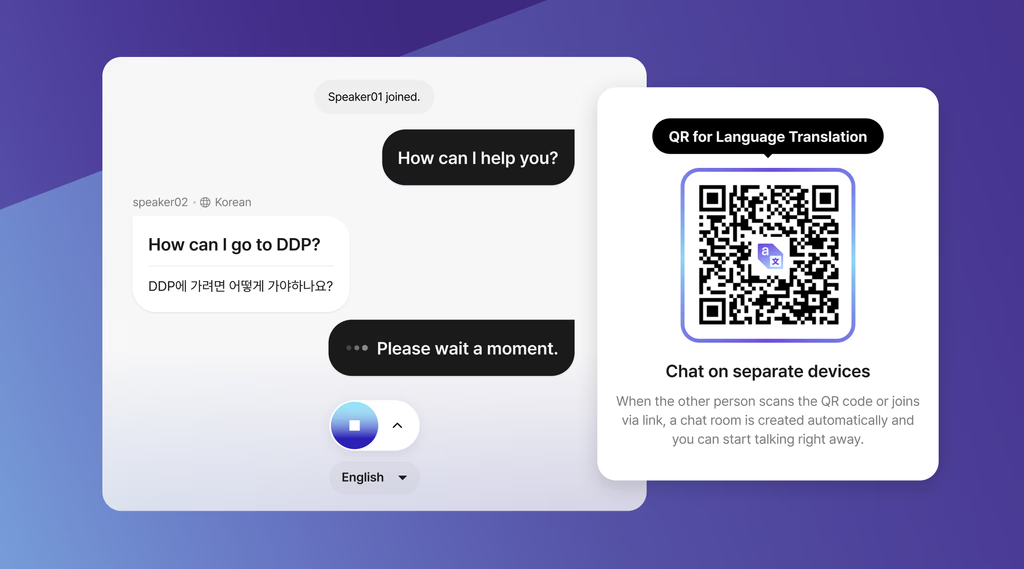
👉For a visual walkthrough, please refer to our official video: [Link]
Your step-by-step manual to start using CT immediately powered by Flitto’s world-class language data excellence.
Following our recent announcement of the official launch, Flitto Chat Translation (CT) introduces a new standard for real-time multilingual communication across both online and offline environments.
This manual walks you through CT’s key features and provides clear instructions for immediate adoption.
Getting Started with CT
Step 1. Launch the App
Download and open the Flitto Chat Translation (CT) app from the App Store or Google Play.
When you open the app for the first time, you will be prompted to continue with Google, Apple, LinkedIn, or email to set up your account. This step ensures that CT can provide hyper-personalized translation based on your preferences and custom datasets.
After signing in, users can choose between two primary modes on the home screen:
- QR Conversation Mode (Cross-Device)
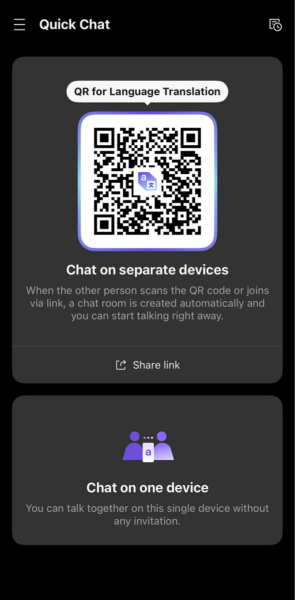
Step 1. Tap “Share link” (QR Conversation)
This displays your QR code, allowing each participant to join the room on their own device.
Step 2. On the participant’s device, tap “Agree and Start”
Once they accept, they immediately enter the conversation room.
Step 3. Start the conversation
The conversation begins when a user taps the record button.
(If your team prefers, conversation start can also be tracked based on room activation rather than the record button.)
❇️Highlights:
• No download required for the other party
• Each person communicates in their native language
• Up to 10 participants supported
• Ideal for professional real-time multilingual meetings
2. One-Device Conversation Mode
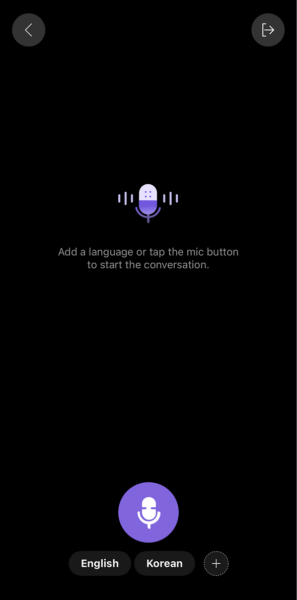
Step 1. Tap “Chat on One Device”
This mode supports up to three languages simultaneously.
Step 2. Tap the record button
Begin speaking. CT will automatically detect changes in language and translate accordingly.
Step 3. Add more languages using the “+” button
Tracking “+ button” usage helps understand user behavior and multilingual complexity in live environments.
Custom Assistant: Building Personalized Translation Intelligence
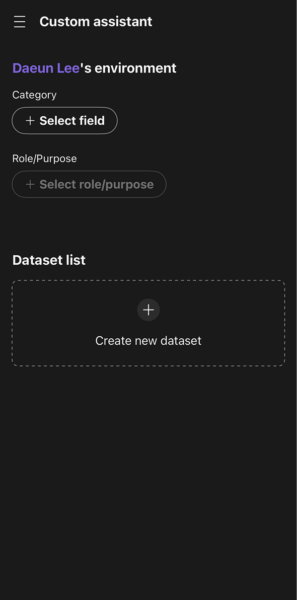
Step 1. Open the left menu and tap “Custom Assistant”
Step 2. Tap “Create Dataset”
This is where users upload files or enter content to generate a customized vocabulary dataset.
Once completed, CT learns the terminology, phrasing, and communication patterns unique to each user or organization, enhancing translation accuracy with continued use.
Tips for Effective Use
• Maintain close device proximity for optimal speech recognition.
• Ensure stable network connectivity, especially for multi-participant QR sessions.
• Upload corporate or domain materials early to maximize personalization.
• Store frequently used phrases for quick, one-tap transmission during conversations.
Why CT Stands Apart: Flitto’s Data Advantage
CT is built on Flitto’s proprietary language datasets accumulated over more than a decade across millions of users and enterprise projects.
This enables:
• Superior STT accuracy
• Reliable multilingual performance
• Personalized translation based on custom datasets
• Scalable, enterprise-ready global communication
Flitto’s deep language data expertise powers CT’s hyper-personalization, performance, and real-world reliability. Experience multilingual communication that is: accurate, fast, personalized, and effortless.
👉 Download now on major app stores.
Flitto will continue advancing AI-driven multilingual communication through world-class language data and cutting-edge model innovation.